Kaleidoscope
I built an AI clipboard for Mac

TL;DR: I built an AI clipboard for Mac that uses Apple’s Foundation Models to transform and reframe everything you copy and paste. You can download Kaleidoscope here and read installation instructions below. I’d love to hear your feedback.
In my first Substack post, I wrote about how I have been “using AI as a sort of kaleidoscope for reframing.” Originally, this was just me copying summaries of ChatGPT conversations into Claude and asking for alternate perspectives, but I wanted something more integrated into my day-to-day workflow that didn’t require me to constantly juggle copying and pasting snippets of text across multiple windows.
I also wanted a clipboard that would let me re-paste something I copied hours ago instead of just the single last item I copied. There are existing Mac clipboard apps that do this of course, but some of the best ones require a subscription, which seemed ridiculous to me.
So, I built Kaleidoscope.
Kaleidoscope is an AI clipboard for Mac that uses Apple’s Foundation Models to transform and reframe everything you copy and paste. Kaleidoscope is written in Swift, so it looks and feels like a native Mac application.
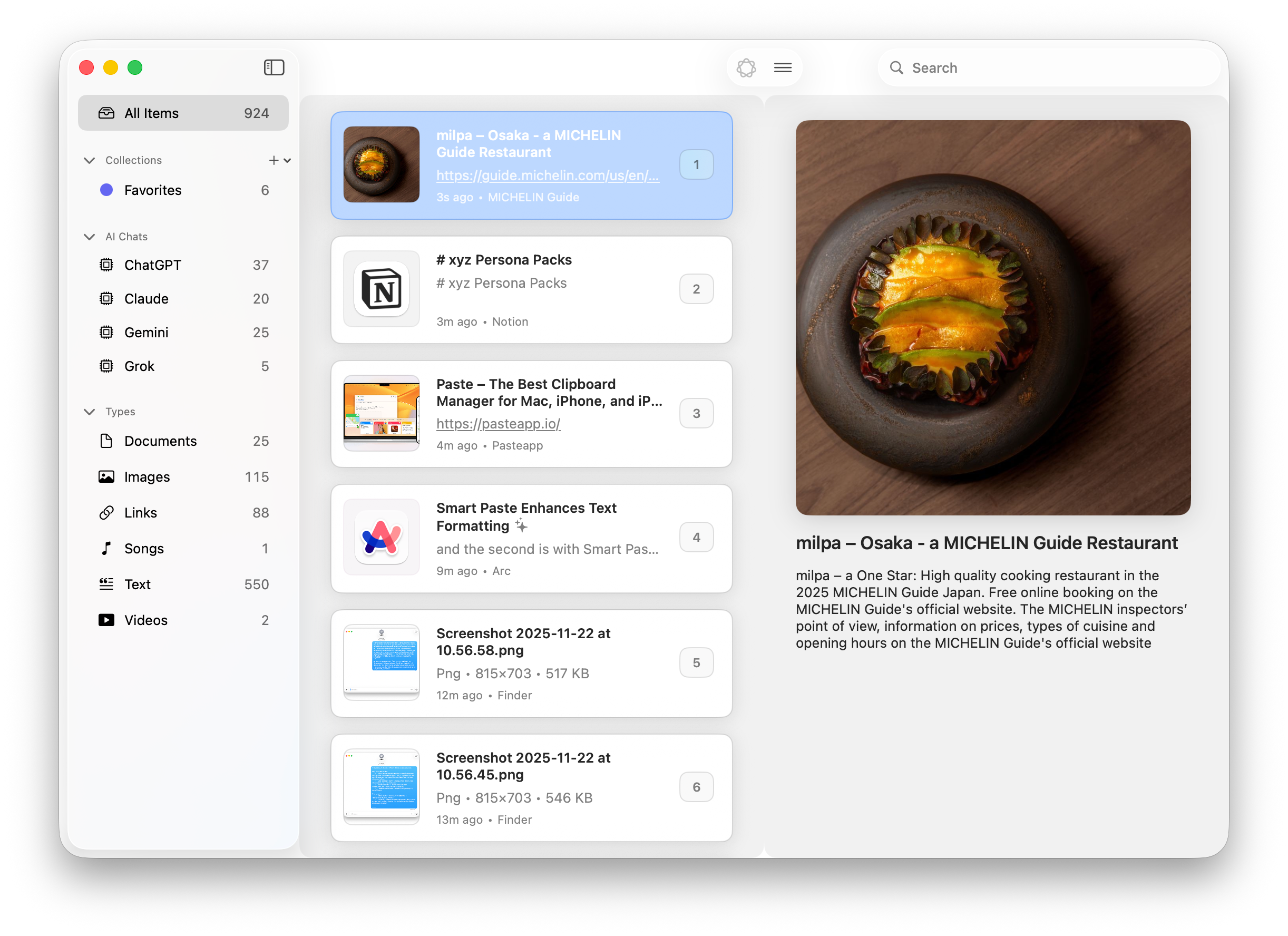
On its surface, Kaleidoscope is just a (nice) clipboard app, but it has some unique features that address specific challenges I’ve been dealing with during my time on the jagged frontier.
Reframes
Copy any content (like this article I recently shared on Substack) and click the Reframe button to generate different perspectives right alongside the original article.
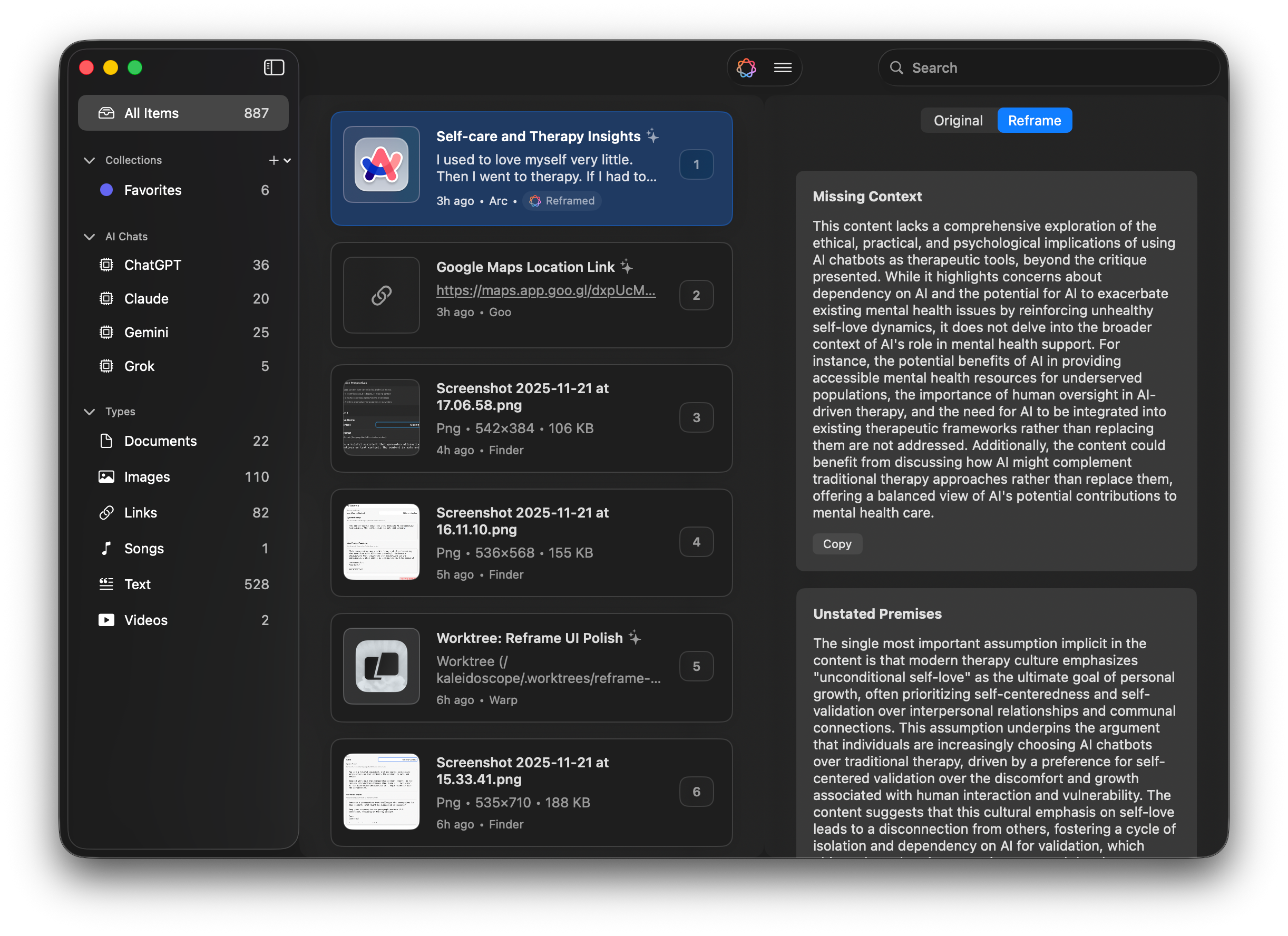
You can also edit the reframe prompts if you have ideas for other perspectives that would be helpful to you.
I’m particularly interested in building tools that make it easy to directly run prompts against different types of content without having to copy and paste that content somewhere else (i.e. into ChatGPT). I don’t want all of my ideas and explorations to be locked inside a single application (particularly if I can’t easily get those conversations out).
AI conversation capture and resume
Exporting entire conversations from AI platforms is frustratingly difficult (in some cases it’s actually impossible). You can of course ask AI for a summary and then copy-paste that summary somewhere else in order to save it, but that process is cumbersome and always leaves me wondering if the summary is actually an accurate representation of the entire conversation or just the most recent parts.
Kaleidoscope handles this by fetching the entire AI conversations (all back-and-forth turns) from ChatGPT, Claude, Gemini, and Grok using share links. Using this feature does require generating public links, which is not my preference, but I couldn’t find another way to access the conversations in their entirety without using API keys and I didn’t think most people would be willing to go through the hassle of generating one key, let alone one for each AI provider.
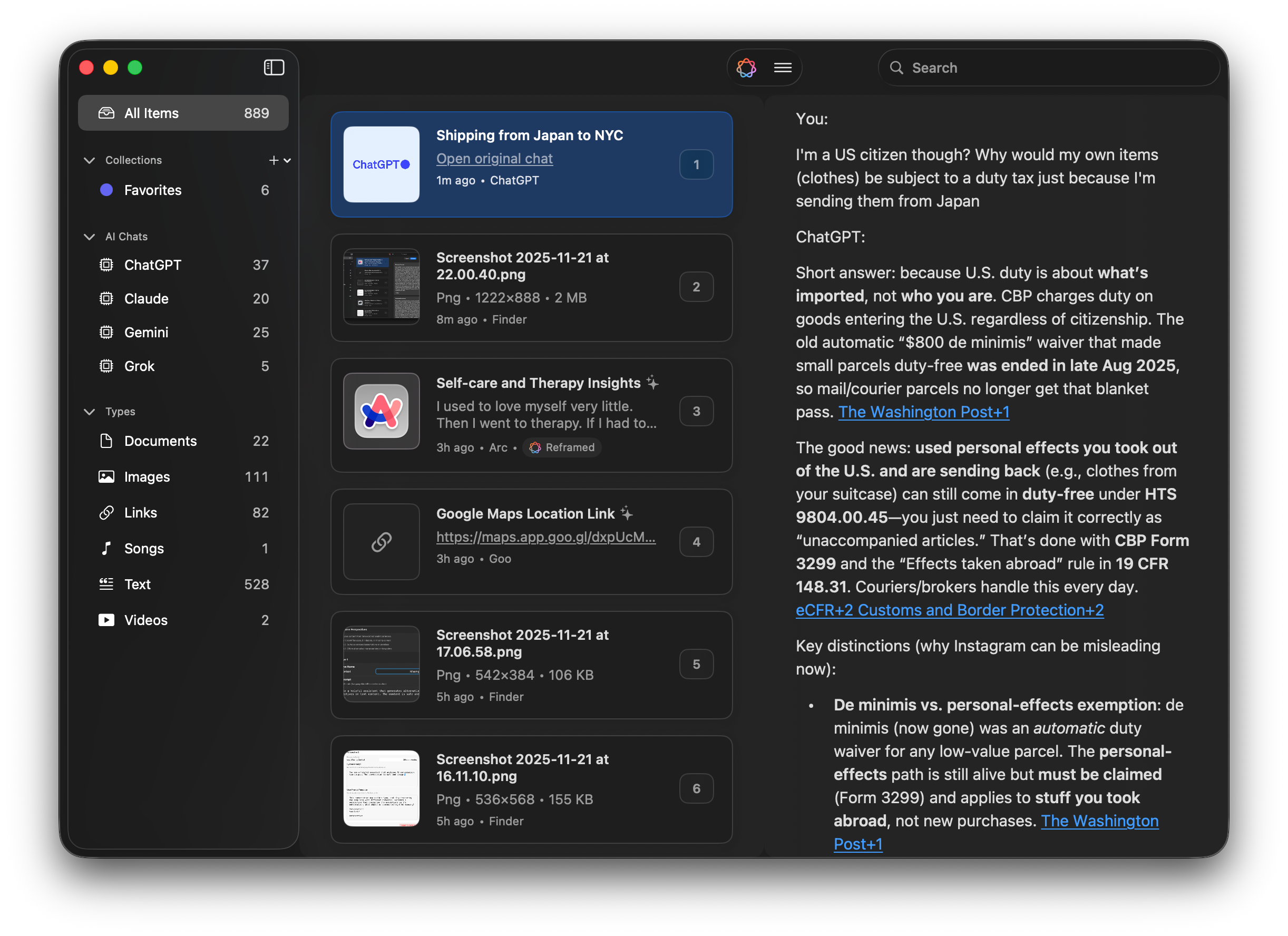
When you copy a shared AI conversation link, Kaleidoscope automatically recognizes the URL and uses a bundled external service to extract and save the full conversation. Kaleidoscope then transforms the conversation into two useful formats:
A summary, which you can paste anywhere (including with the Smart Paste feature described below)
A “resume prompt”— basically a way to continue the same AI conversation with a fresh model and context window using a compacted version of the conversation so far
This prompt allows you to take an existing conversation from ChatGPT and “resume” it in Claude, or vice versa
Resuming can be helpful when conversations get long and AI quality starts to degrade due to context window bloat. Tools like Claude Code use this compaction technique to continue conversation threads indefinitely while minimizing context degradation
Smart Paste
AI is great at generating content, but then every time I want to paste that content somewhere else, I have to consider how that particular destination (e.g. iMessage, Slack, Notion, etc.) is going to render what I’m pasting. iMessage doesn’t support Markdown at all, Slack supports maybe 50%, and then Notion is basically all Markdown. It’s frustrating to have to reformat the same piece of content for each of these destinations.
With Smart Paste, Kaleidoscope identifies which application you’re pasting into and reformats the content you’re pasting based on the destination. This feature needs more work (only a few applications are currently supported because there are a lot of destination-specific quirks to account for), but the concept of being able to paste the same piece of content with light AI editing to make sure it looks like it was actually intended for that destination is exciting to me.
For example, here’s text pasted directly from ChatGPT into iMessage:
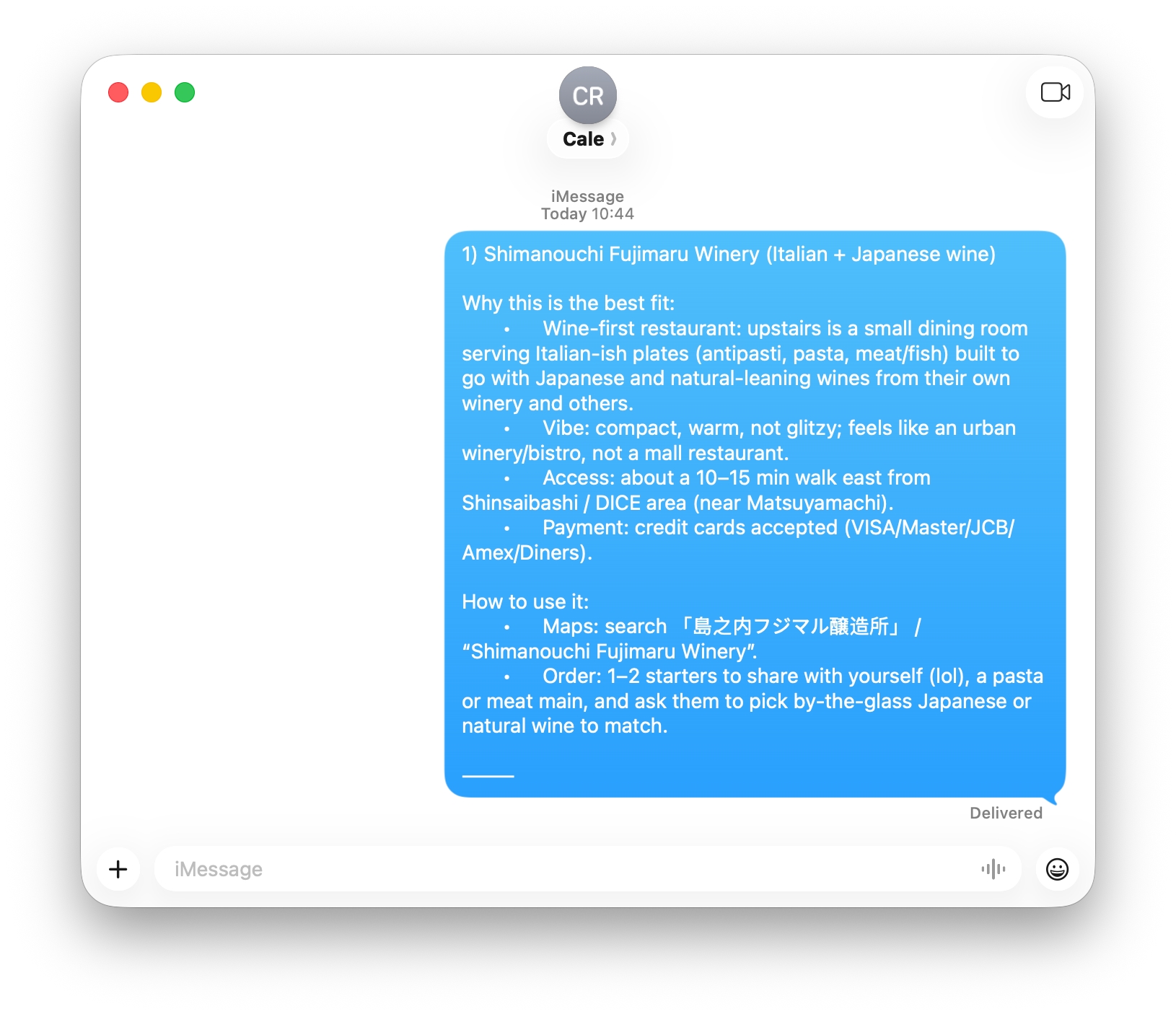
All those indents and bullets really annoy me, so Smart Paste removes them and makes it feel more like an actual text:
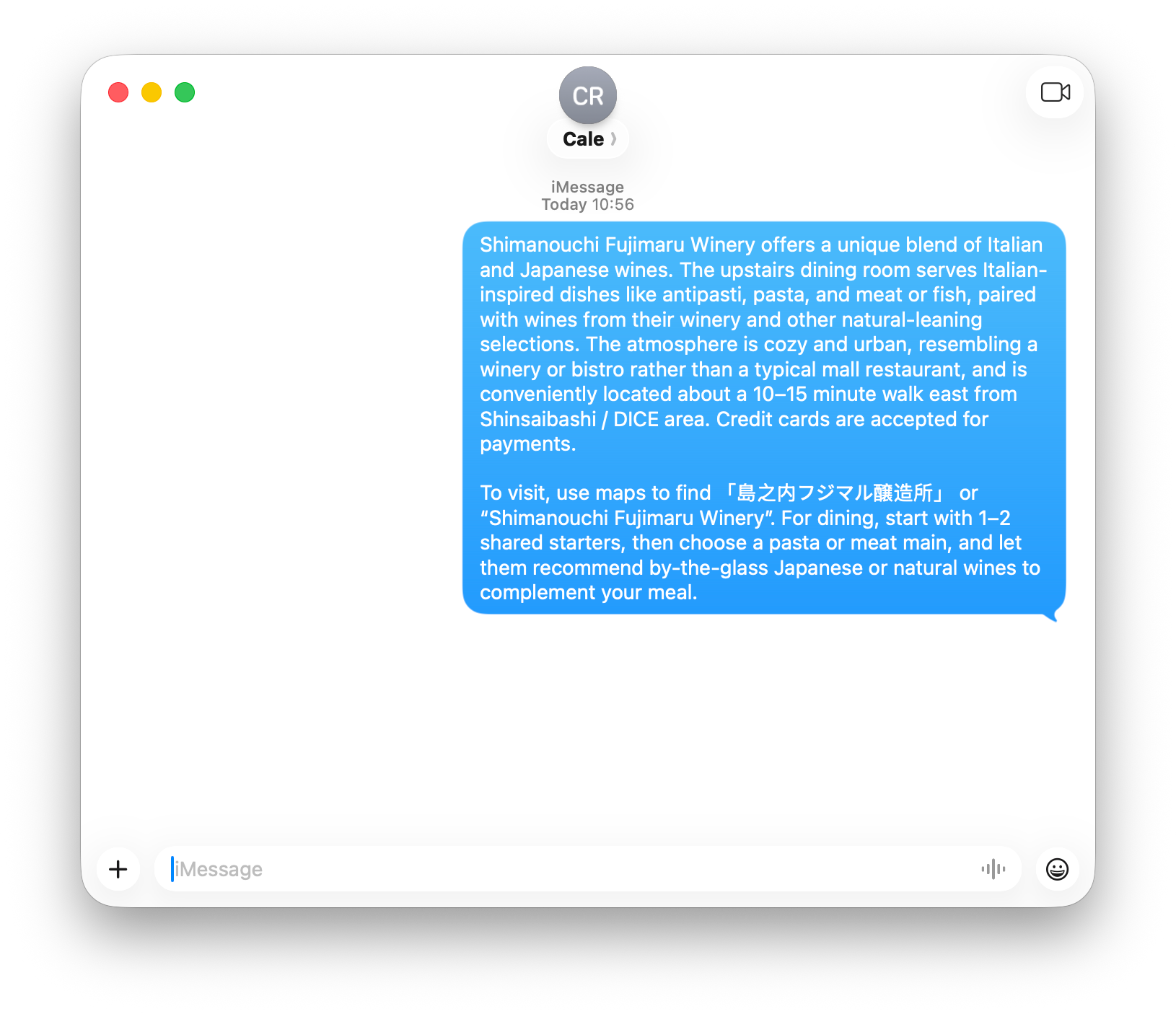
All of these features use the Foundation Models built into Macs with Apple silicon, which means all of your content stays on your laptop rather than being sent to AI providers (or to me).
Kaleidoscope also has a bunch of other convenience features you might expect in a clipboard app:
Pretty link previews—particularly for YouTube and Spotify links since I happen to copy those a lot
Robust keyboard navigation—use the 1-9 number keys to easily select from your most recent clipboard items
Support for multiple file types—you can view all the pages of a PDF or watch a video file you copied directly in Kaleidoscope
Markdown rendering—I’m a heavy Notion user
Categories and collections to organize your clipboard items
Light and dark modes
If you prefer to keep things simple, you can just use the menu bar version of Kaleidoscope, which gives you the basic features without ever needing to open the main app window:
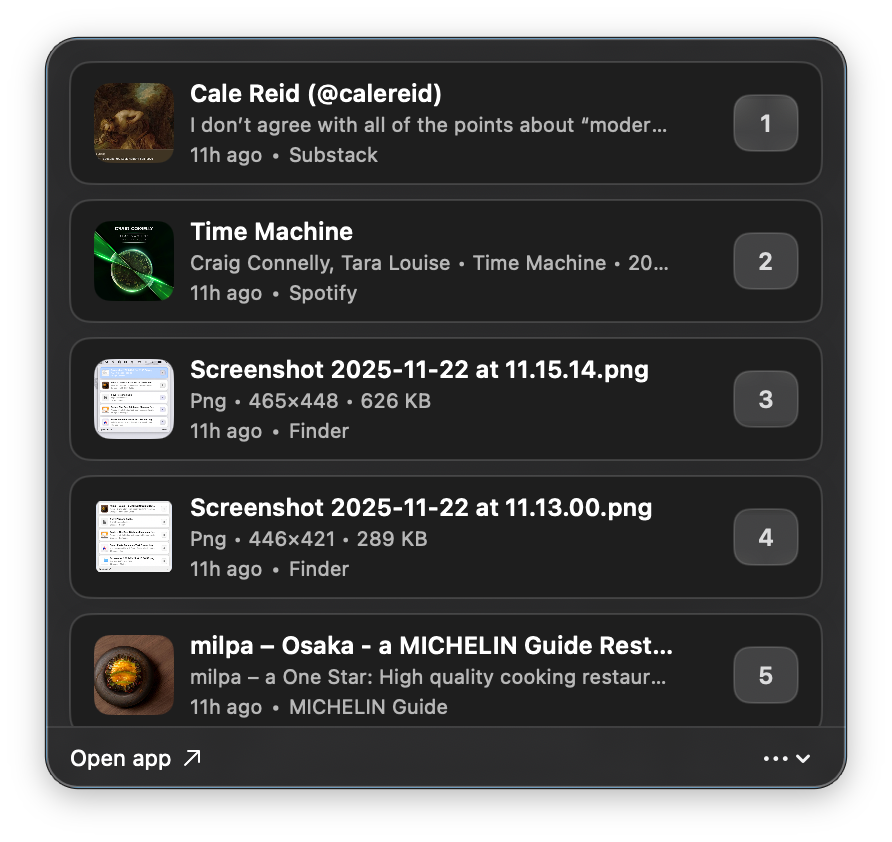
Beyond the features themselves, Kaleidoscope has been a fun opportunity for me to explore a few areas that I’m particularly interested in:
Native applications
A lot of people are using AI to build web apps, but I wanted to see if it was even possible to use these tools to build a desktop app (because I almost always use the desktop versions of apps if they exist)
Building Kaleidoscope means that I now have the foundations of a native Mac app that I can reuse for any other ideas I happen to come up with
Local AI models
It would have been straightforward to use the OpenAI API to apply transformations or generate reframes but then every request costs money, regardless of the value of the output. Those requests aren’t that expensive right now (partially because they’re being subsidized by VC money), but it won’t be that way forever.
I’d really like to try to run more AI models locally (the Foundation Models are still pretty limited at the end of the day, and they have a surprising amount of built-in content moderation), but it’s still prohibitively expensive to do so from a hardware perspective. These costs will come down over time, though.
Local AI models are particularly exciting because even incremental decreases in latency significantly increase the number of applications where AI is relevant.
Agentic development workflows and patterns
AI-driven software development is so new that there’s almost no consensus on best practices—it’s very much the wild west out here. This project gave me the opportunity to learn and explore what does and doesn’t work for my own particular workflow.
I plan to write more on that last bullet in my next post, but some immediate thoughts I want to share:
Designating one agent as the primary developer, another as the tech lead, and another as the code reviewer not only helps me keep everyone’s responsibilities straight, but it also seems to help the agents because they only have to focus on the problem from one particular vantage point.
This approach does occasionally backfire—on more than one occasion, the TL agent refused to make code changes themselves.
If I had had just a single engineer and/or designer working with me on this project, it would have made things much easier. A team any larger than that would have made things harder though because I think we would have tried to rely more on human expertise instead of spending the time required to figure out how to use the AI tools in the most optimal ways possible.
Based on what I’m reading online, a lot of people seem to be giving up on these tools way too early when they hit quirks like Claude Code saying code is “tested and production ready!” without ever running the test suite. This is strange to me though because inefficiencies and errors of this sort were routinely the focus of many sprint retros I participated in over the years as a PM. It takes time to find a process that works (and to get everyone to regularly adhere to that process).
Using git and trunk-based development is absolutely essential but introduces its own set of issues because all of the agents are still running on your computer and can easily switch branches and drop changes if you’re not paying close attention.
“Yes, and”-ing (an AI pattern I wrote about in my last post) makes it difficult for agents to write code in languages like Swift that utilize implicit defaults that are not directly expressed in syntax.
Because of their generative nature, LLMs really seem to struggle to conclude that the right solution might be to delete code rather than add more.
Please test Kaleidoscope and send me your feedback or, even better yet, leave a comment below.
Kaleidoscope installation instructions
Some caveats:
You will need an Apple computer with an Apple silicon chip (M1 or newer) on the latest version of macOS (v26 Tahoe) to use Kaleidoscope.
If your Mac is <5 years old, Kaleidoscope should work just fine and will guide you through an onboarding process to verify compatibility.
You will need to have Apple Intelligence enabled in order to use most of the features described above. The onboarding process will verify this as well.
Steps to install:
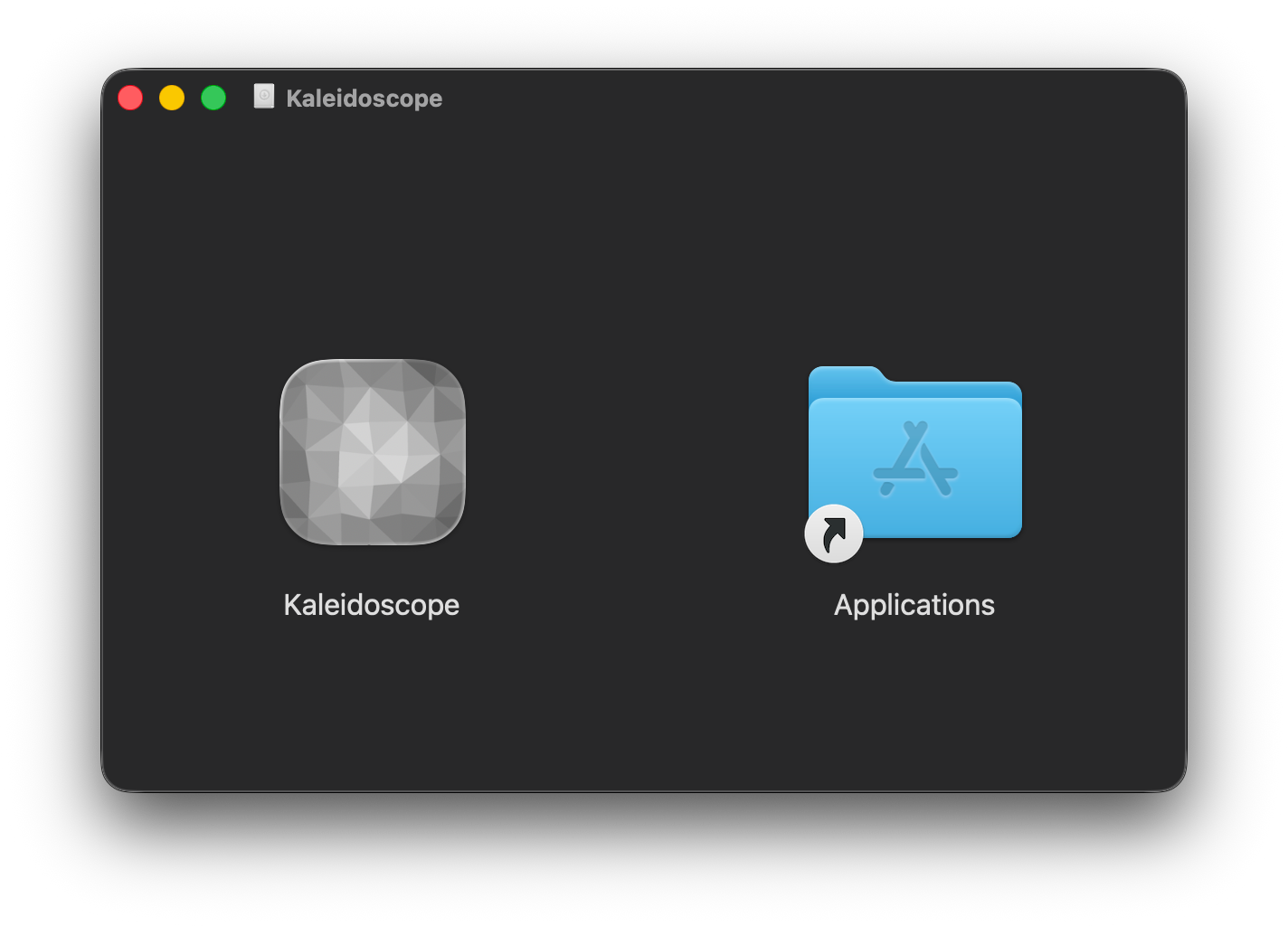
Open the file and drag Kaleidoscope into your Applications folder
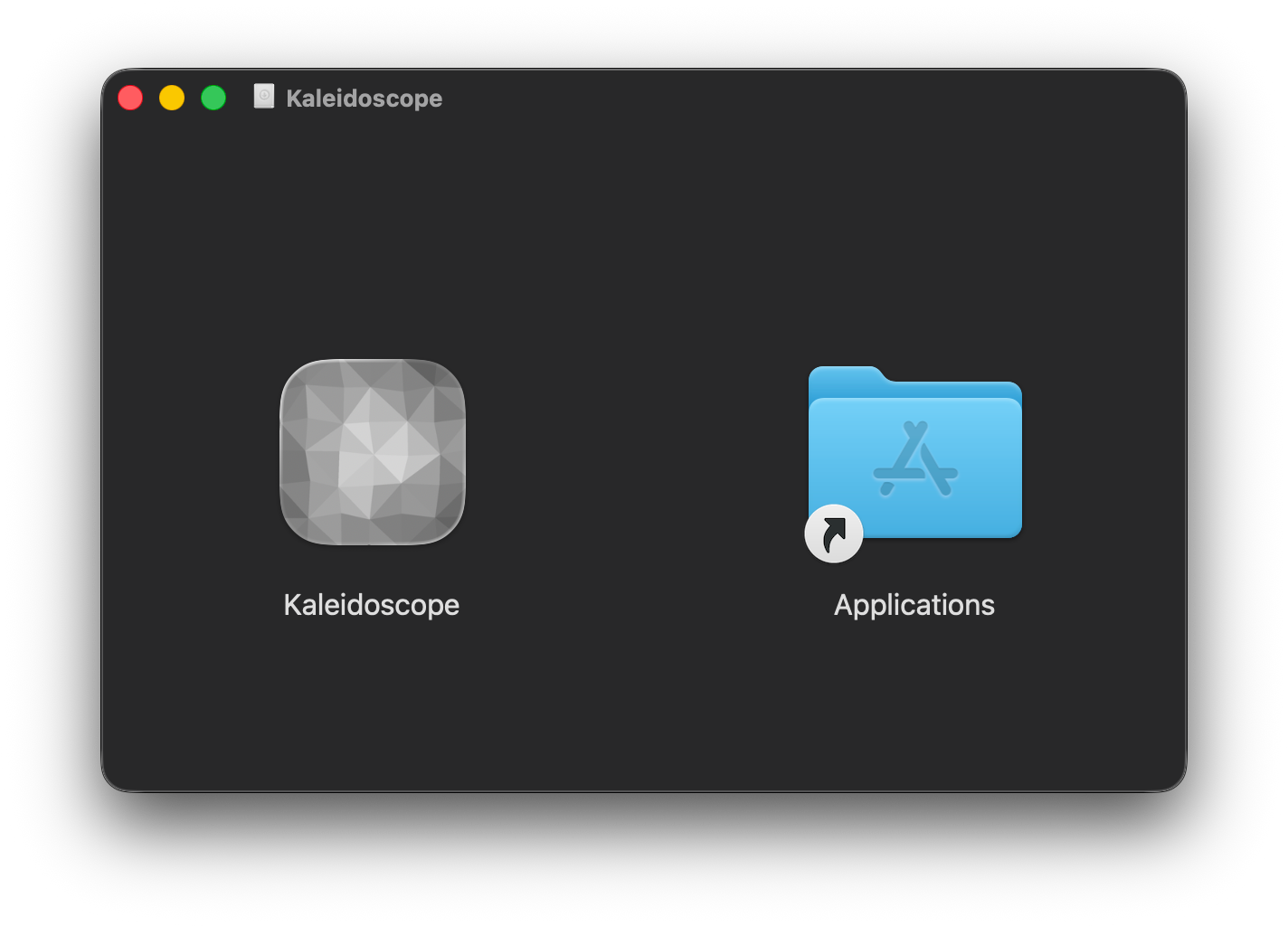
Open Kaleidoscope from your Applications folder
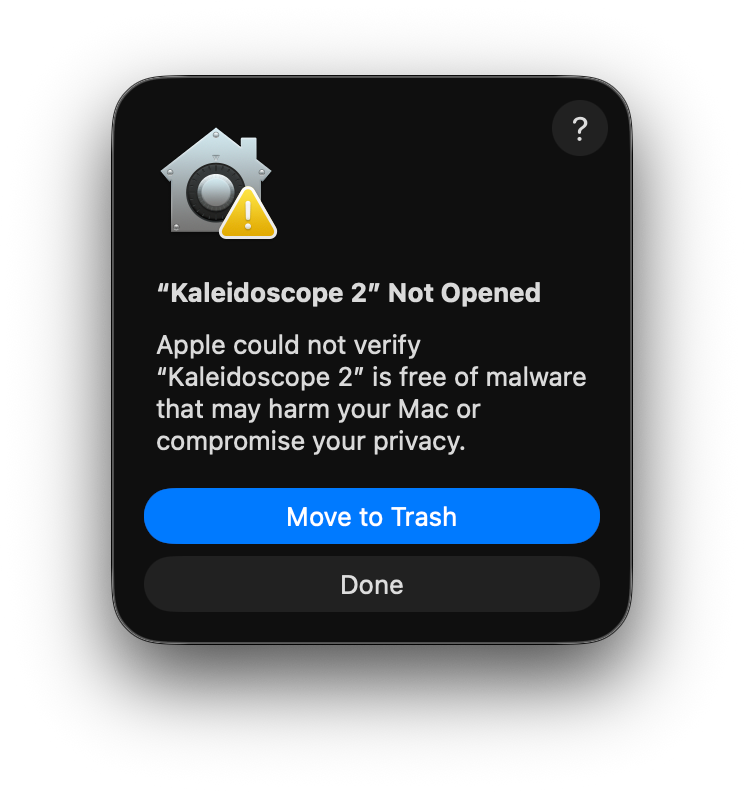
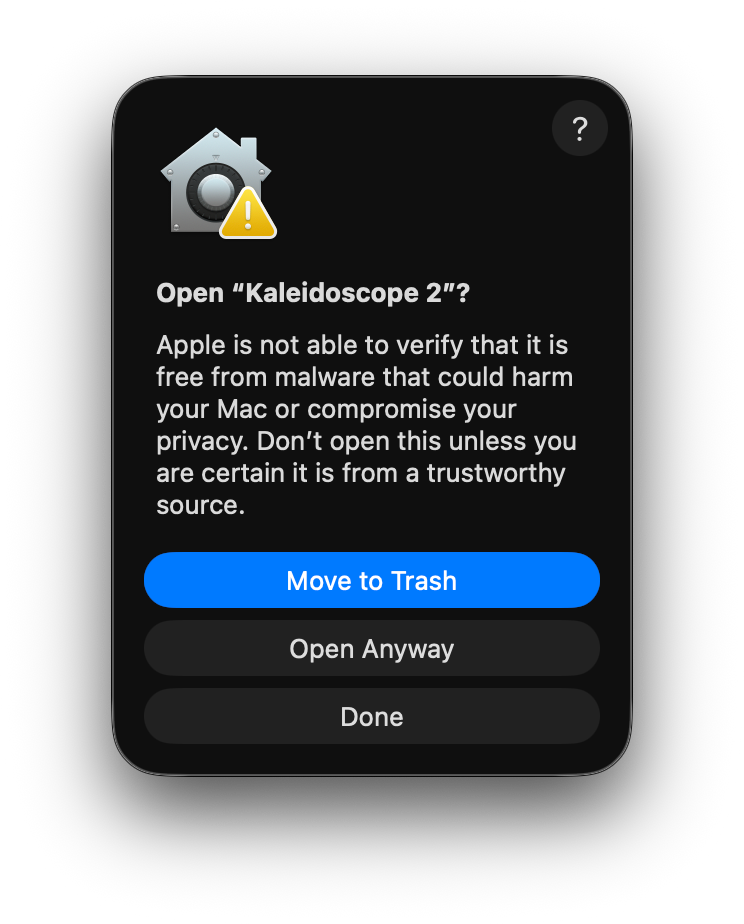
When this prompt appears, click “Done”
I would have to pay Apple $100/year in order to fix this and I don’t want to do that so here we are.
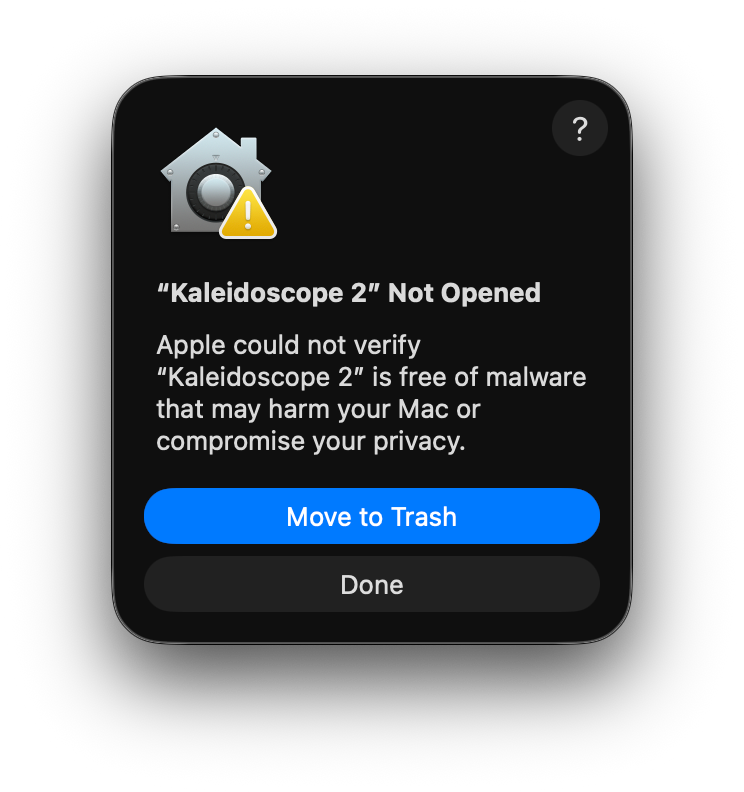
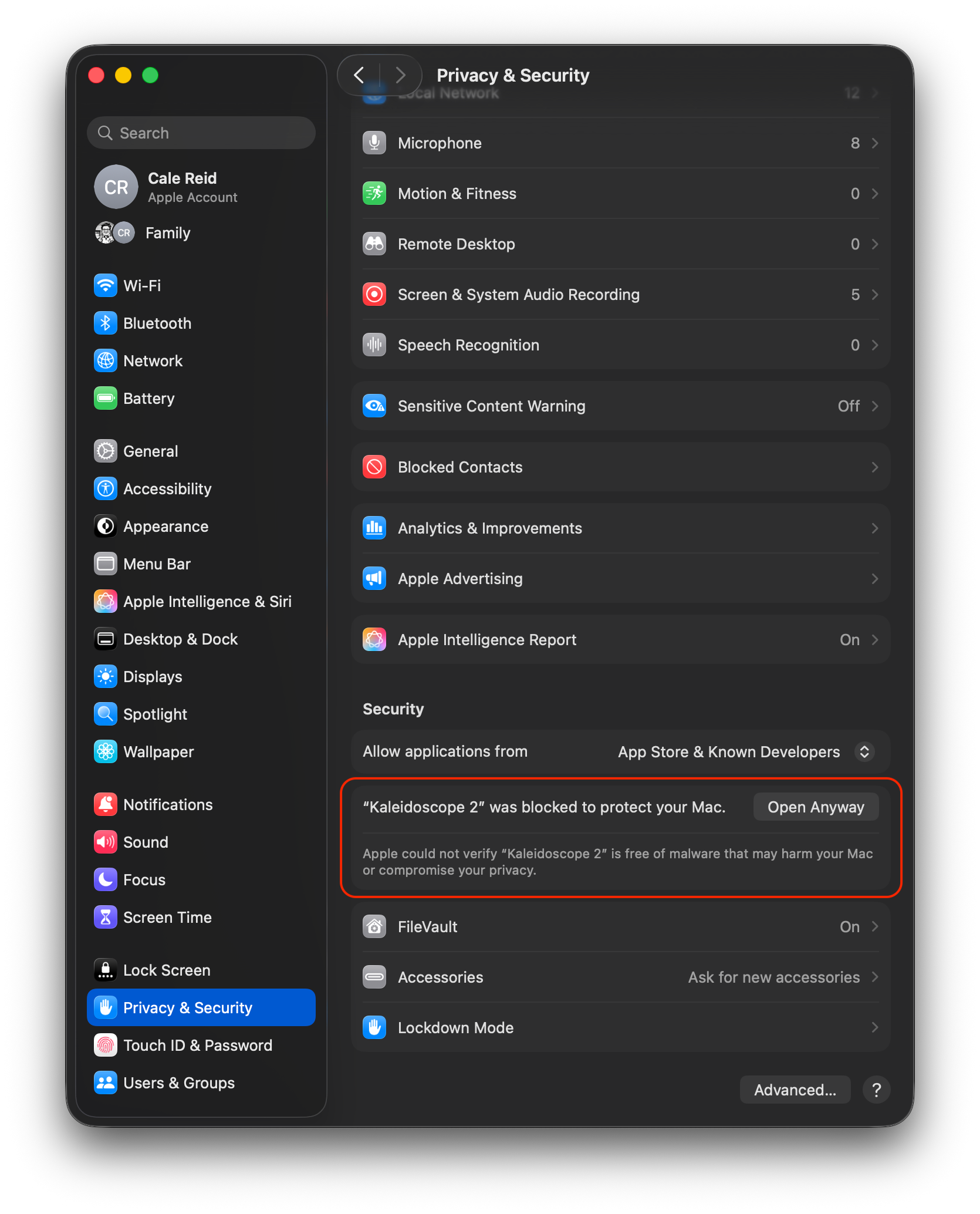
Go to Settings > Privacy & Security > scroll all the way to the bottom to find this section, and click “Open Anyway”
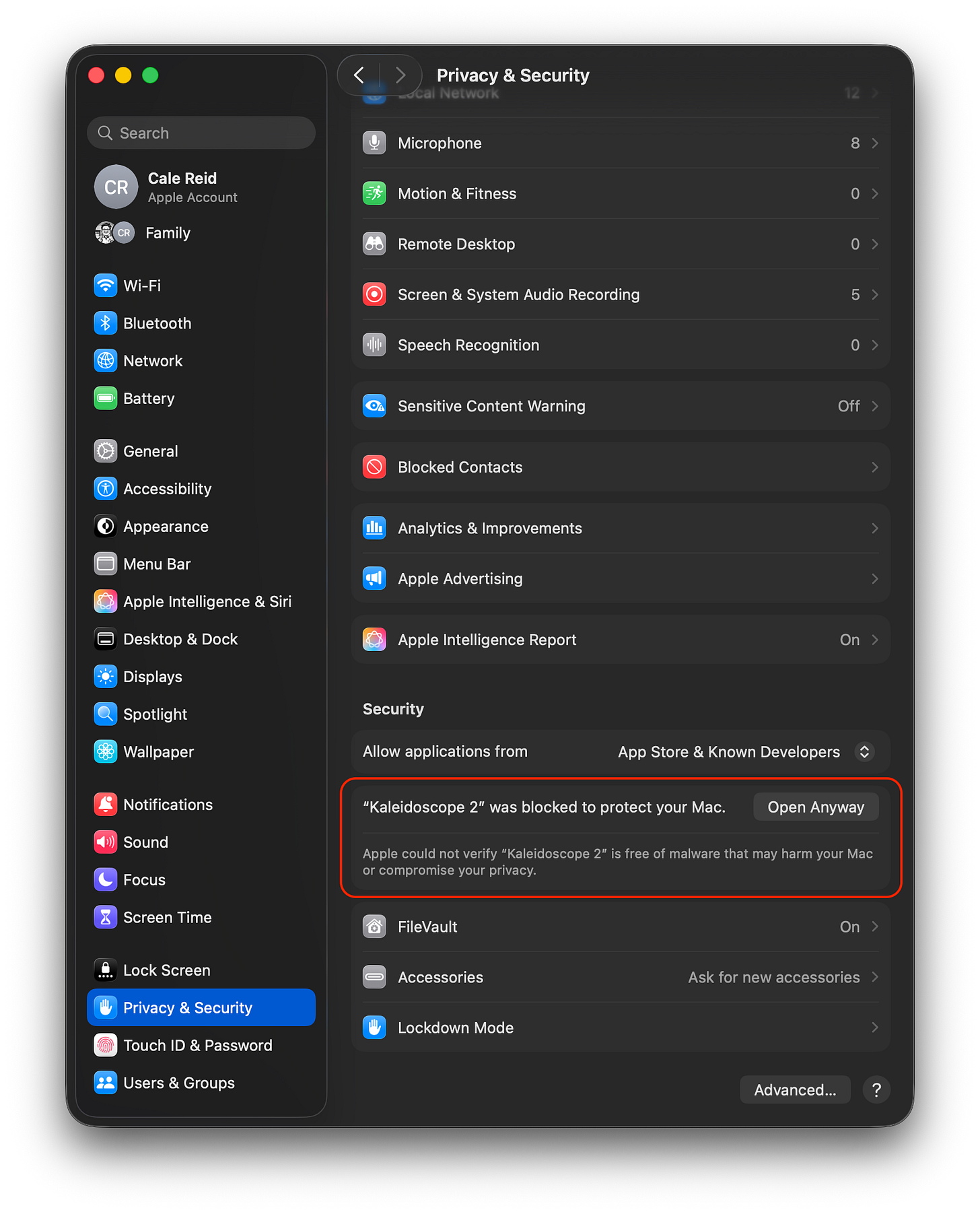
Click “Open Anyway” again
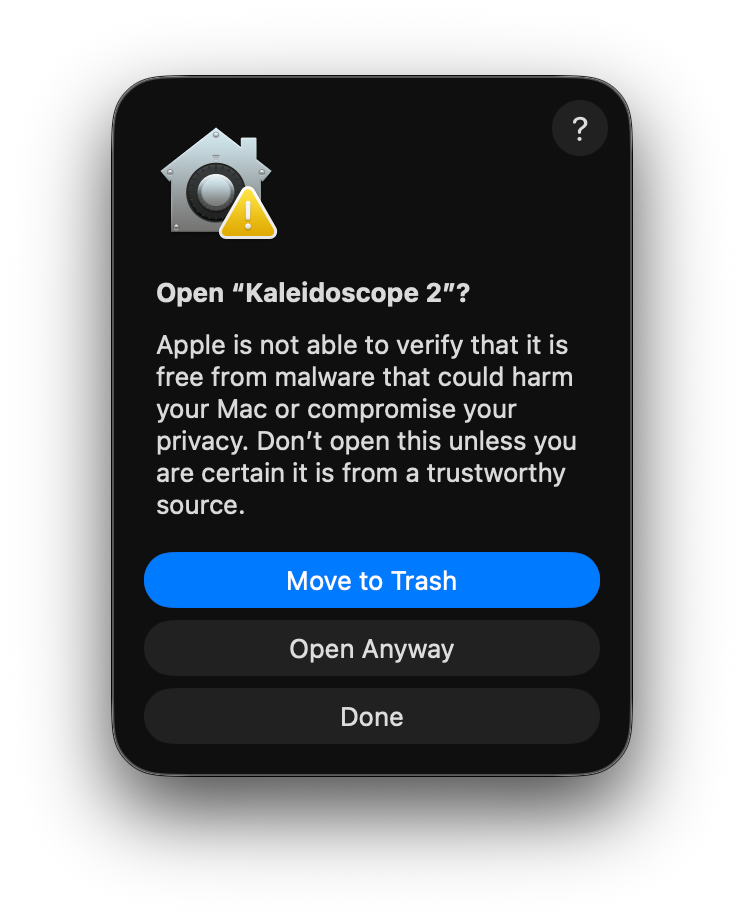
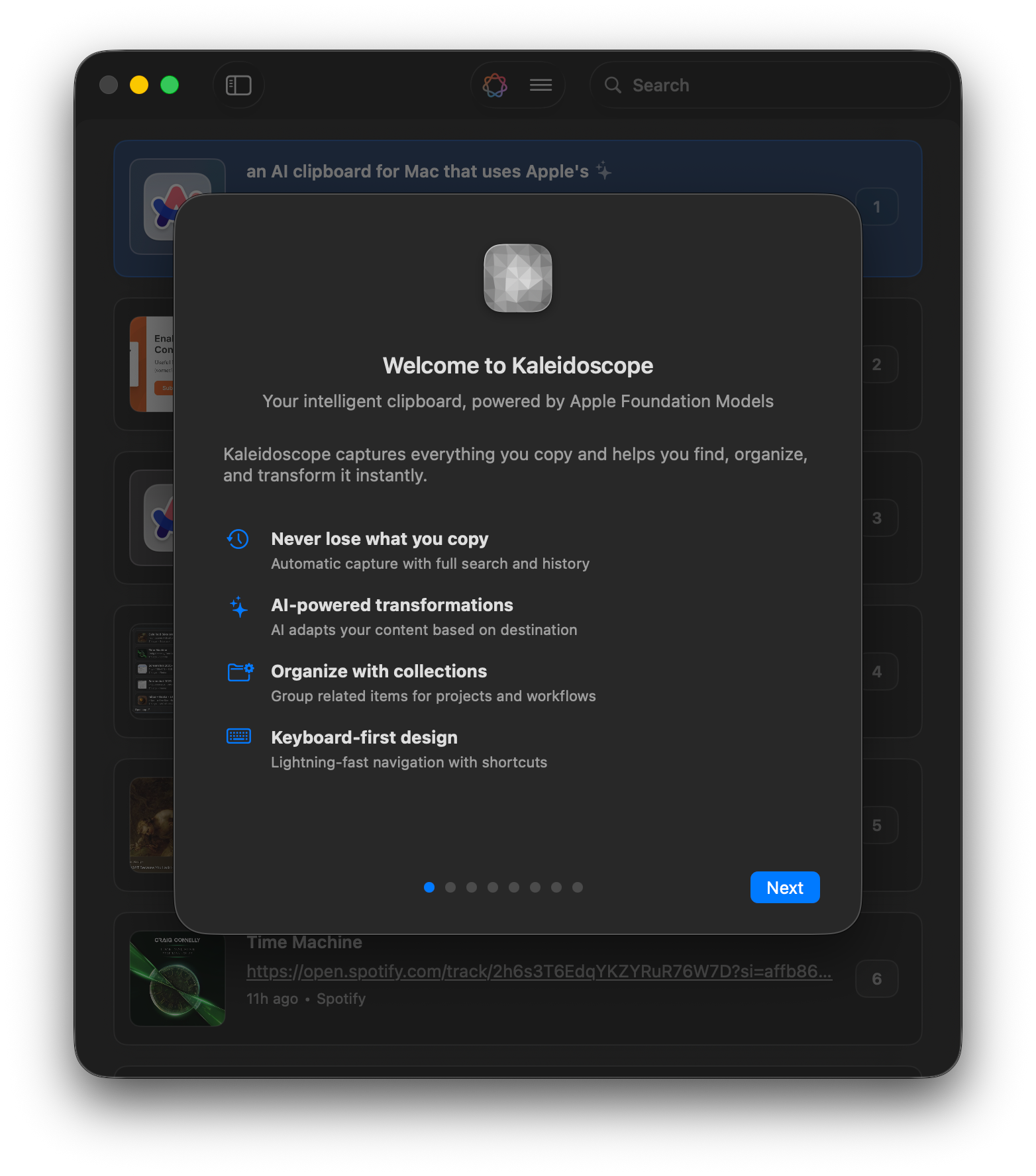
Done! You should now see Kaleidoscope’s onboarding screen
This is a cool tool! Two things stood out to me:
Reframing is fascinating. I was reminded of the software (https://verbasizer.com) that David Bowie used in the mid 90’s to jumble and reframe words and ideas from his dreams into new contexts and shapes. He used this to write music and ideate in novel ways. Reframing context, whether randomly or intelligently, can be a really powerful tool for learning and analysis.
The auto formatting based on destination app is killer - Slack formatting (which works differently on mobile and desktop?!) is truly a burden. I wonder too if this concept could be extended further, by swapping “app” for “audience” - I take the same core info and paste it to a Engineer, C-suite, and Product Manager and based on who I am sending it to, it tailors the context, level of jargon, and tone. I know I've done a fair amount of this manually already 😁